Automatic SharePoint Permission Assignment
Whenever new documents are added to a SharePoint list or document library, the right people need the right access rights. This example shows how linqi can fully automate this permission assignment: as soon as a new document is uploaded, the initiator receives write permissions and a defined SharePoint group receives read permissions – with no manual intervention.
The process demonstrates how the various SharePoint actions work together: the SharePoint event starts the process, the Resolve SharePoint user/group action loads a SharePoint group by its fixed name, and the Assign SharePoint permissions action sets the permissions on the new list item.
A configured SharePoint connection in linqi is required.
Process Overview
The process begins with a SharePoint event that reacts as soon as a new item is created in the document library. The process starts for the person who uploaded the document.
The process then loads a SharePoint group by its fixed name. Using the Assign SharePoint permissions action, Edit permissions are granted to the process initiator for the new list item. The existing permissions of the item are deleted in this step, so that after the assignment only the newly authorized person has access.
Finally, the same action grants Read permissions to the loaded SharePoint group – this time without deleting existing permissions. This keeps the initiator's write permissions while the group additionally receives read access. The process ends after the second permission assignment.
Such a process in linqi looks as follows:
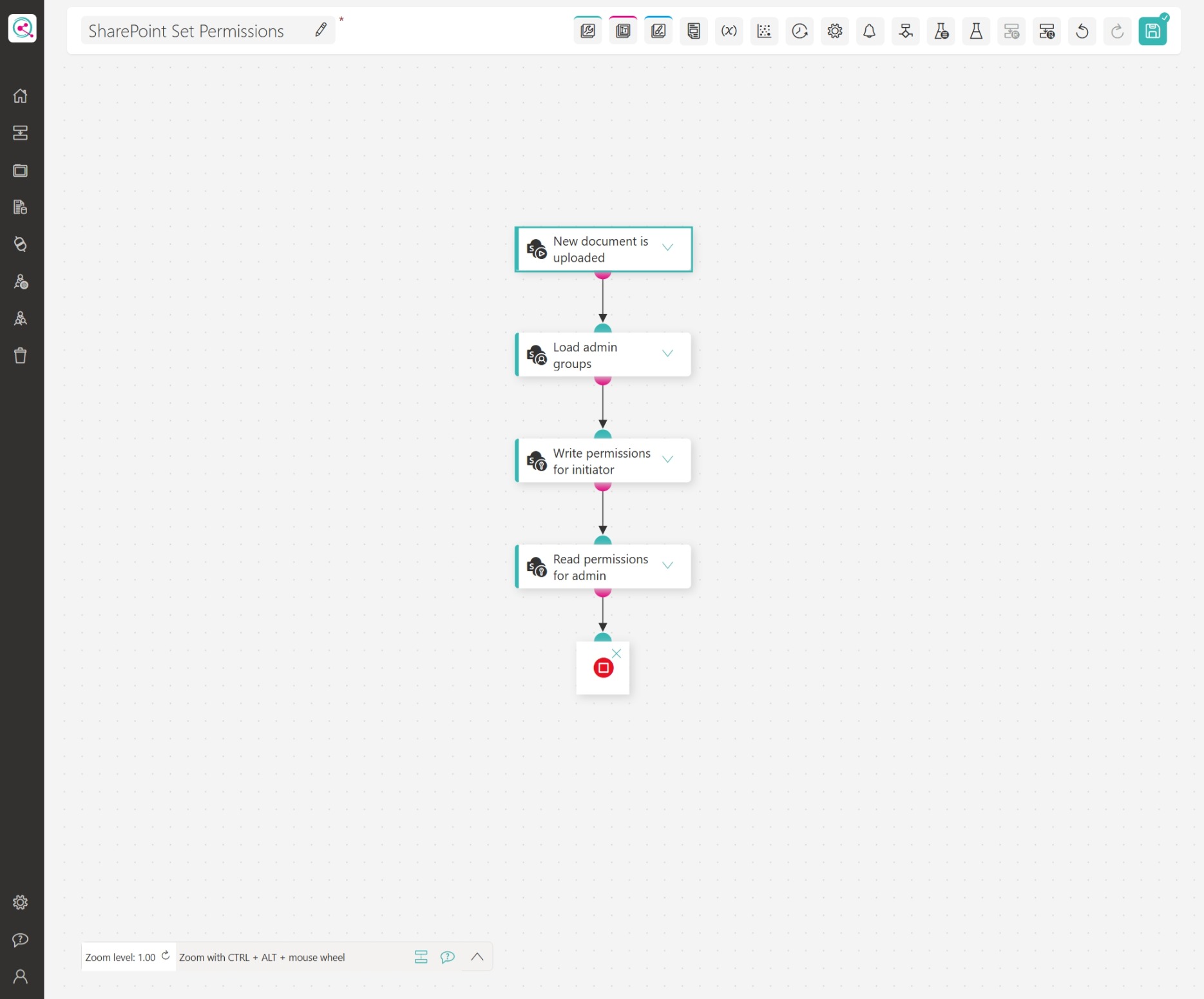 (The screenshot can be clicked to enlarge)
Trigger: New Document in SharePoint
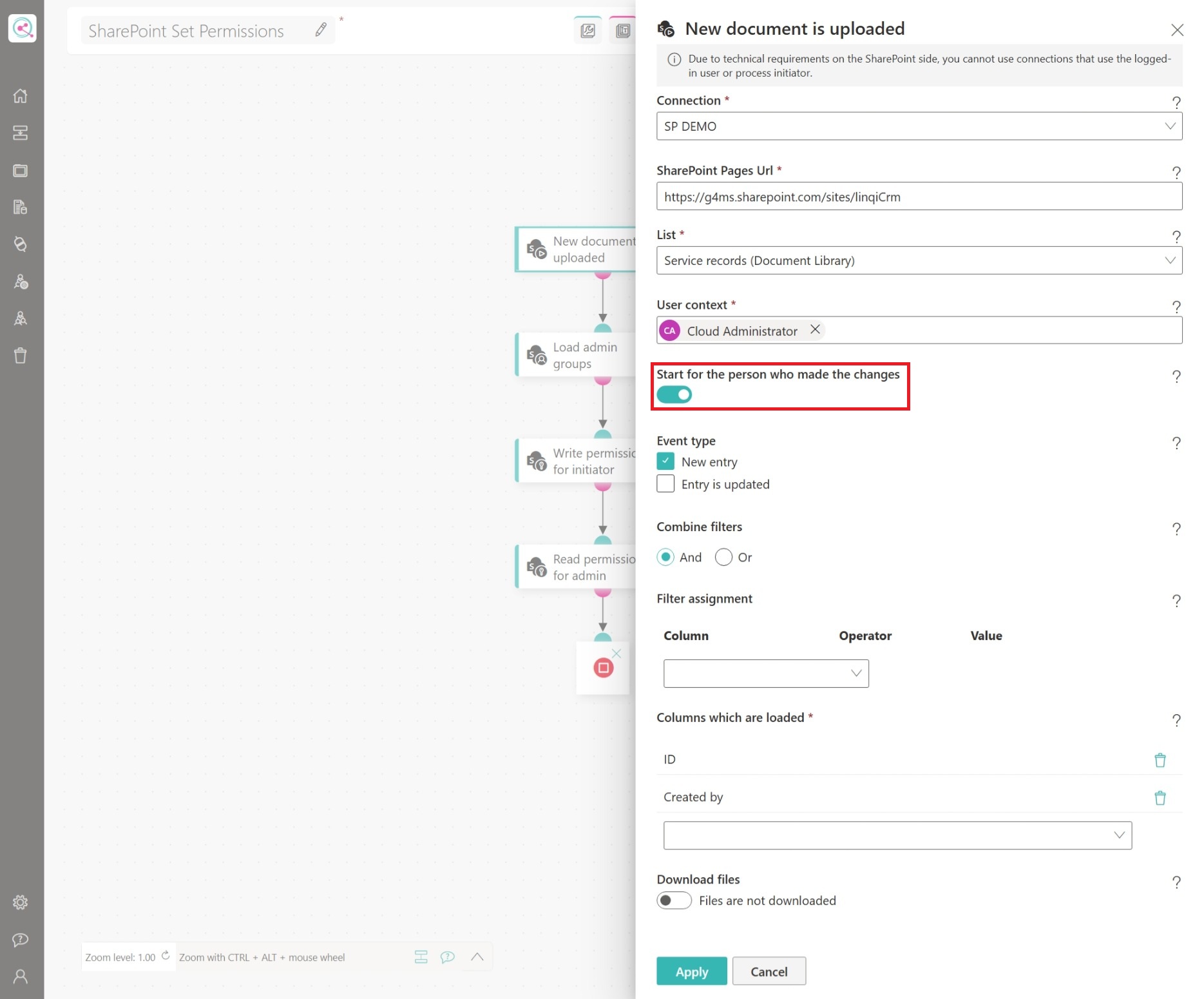
The SharePoint event defines when the process starts. In this example, the action reacts to new items in a document library:
- List:
The action monitors the specified list or document library. - Start for the person who made the changes:
This option is enabled. The process starts for the person who uploaded the document. linqi matches the person by e-mail address and therefore requires the same user base as SharePoint (e.g. via Microsoft Entra ID). - Event type:
The action only reacts to New entry. Updates to existing items do not start the process. - Columns which are loaded:
The columnsIDandCreated byare loaded. They are then available as placeholders – theIDof the new item is used later to scope the permissions to exactly this item.
The configuration looks as follows:
Load the SharePoint Group
Before the read permissions are assigned, the process loads the responsible group. The Resolve SharePoint user/group action loads a SharePoint group by its fixed name and makes the result available as a placeholder. This allows the next step to reference the group without maintaining the members manually – any changes in the SharePoint group automatically apply to future permission assignments.
Assign Write Permissions to the Initiator
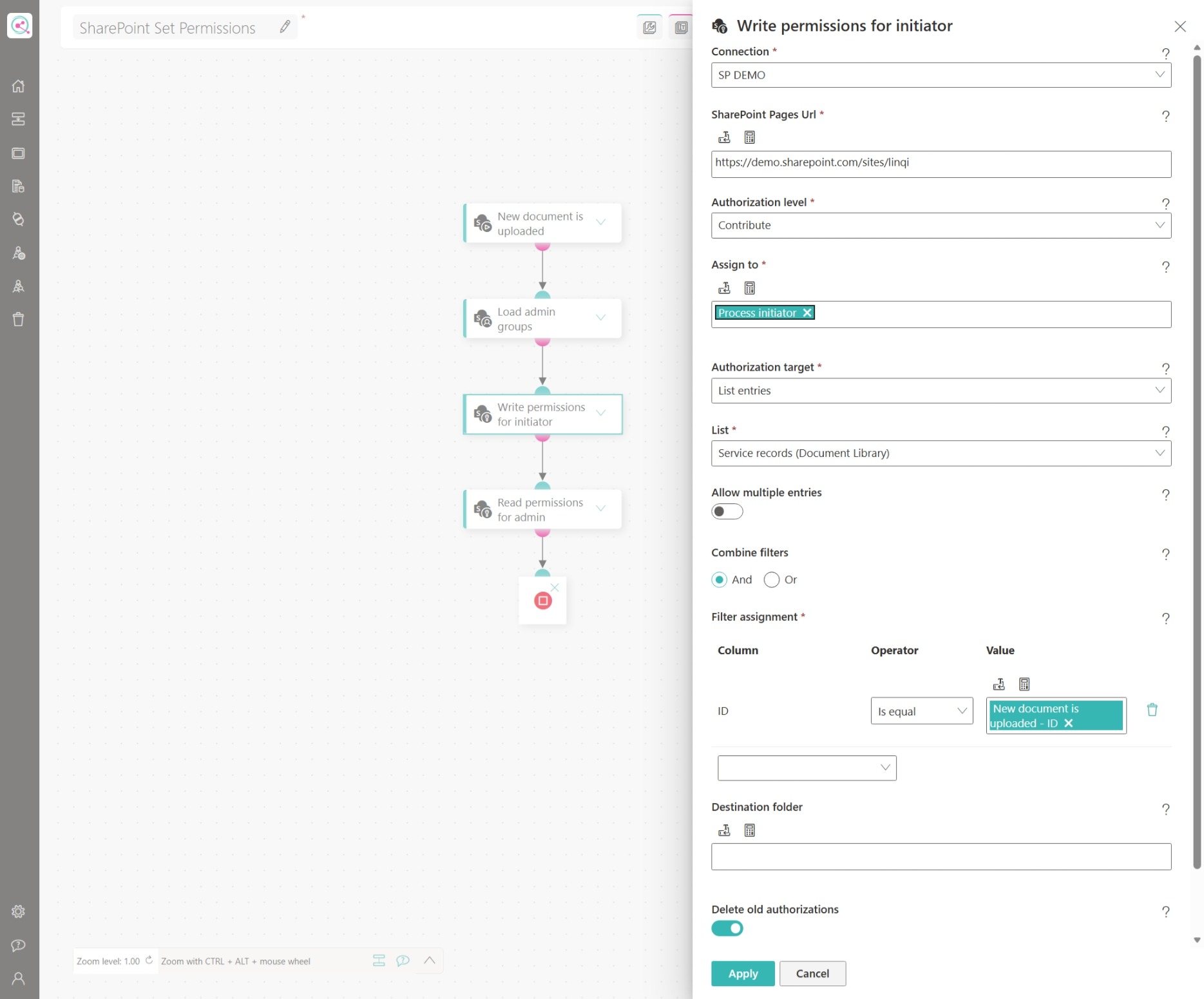
The first Assign SharePoint permissions action grants the process initiator write permissions for the new item:
- Authorization level:
Contribute - Assign to:
The process initiator – the person who uploaded the document and for whom the process was started. - Authorization target:
List entries - Filter assignment:
IDequals theIDof the new document – the placeholder from the SharePoint event ensures that the permission applies to exactly the item that triggered the process. - Delete old permissions:
Enabled. Before the new permissions are granted, the existing permissions of the item are removed. After the assignment, only the authorized person has access to the document.
The configuration looks as follows:
Assign Read Permissions to the Group
The second Assign SharePoint permissions action grants read permissions to the loaded SharePoint group:
- Authorization level:
Read - Assign to:
The placeholder of the SharePoint group loaded in the previous step. - Authorization target:
List entries - Filter assignment:
Again scoped by theIDof the new document, as in the previous step. - Delete old permissions:
Not enabled. Existing permissions are preserved – the initiator keeps their write permissions while the group additionally receives read access.
Conclusion & Next steps
By combining the SharePoint actions, the permission assignment for new documents is fully automated: the initiator receives write permissions in a timely manner, the responsible group receives read access, and existing permissions are kept exactly where that is desired.
Depending on your requirements, the process can be extended easily. For example, an e-mail could be sent to the group after the permission assignment, or a Update SharePoint item action could set a status column in the list item to make the assignment traceable within SharePoint.