SharePoint Troubleshooting
This section covers common problems that can occur when using SharePoint in OnPremise environments, along with the corresponding solutions. New problems and solutions are added to this section on an ongoing basis.
linqi processes with SharePoint events can no longer be published
Problem
linqi processes with SharePoint events can no longer be published. The following error is logged in the SharePoint ULS log:
The remote event receiver URL is not allowed. The URL must be a well-formed absolute http or https address whose host is permitted for outbound requests. Contact the farm administrator to allow the host and port.
Solution
The host and port used for the remote event receiver must be explicitly allowed in the SharePoint farm. This is done via the following farm setting using PowerShell:
$farm = Get-SPFarm
$farm.AddGenericAllowedListValue("SPAllowedOutboundHostPorts", "443")
$farm.AddGenericAllowedListValue("SPAllowedOutboundHosts", "url.linqi.local")
$farm.Update()
Afterwards, linqi processes with SharePoint events can be published again.
linqi processes with SharePoint events are not triggered under SharePoint SE
Problem
SharePoint events are no longer triggered. The following command in the SharePoint Management Shell returns linqi-related entries:
Get-SPOrphanedRemoteEventReceiver
Solution
SharePoint SE does not allow connecting SharePoint events via username and password. Instead, authentication using App ID and Certificate must now be used. The following steps are required for this:
It may happen that Microsoft changes these steps. If a step does not work, please check the official Microsoft documentation.
Required Files
A certificate is required. The certificate must be available both as a PFX file (certificate with private key) and as a CER file.
Registering the App in SharePoint
You must register the app in SharePoint for the first time. To do this, open the following URL in the browser:
https://SHAREPOINT_URL/_layouts/15/appregnew.aspx
Enter the following data there:
- Title:
You can choose the title freely. You should choose a title here that you can easily associate with linqi, e.g., linqiAppTrust. - App Domain:
Enter the URL of linqi here. - Redirect URI:
Enter the URL of linqi here as well.
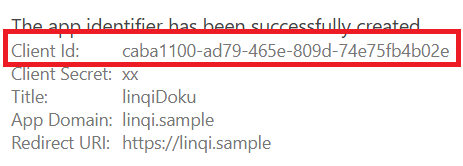
Once you click Create, a Client ID will be displayed. You must save this, as you will need it for the connection to SharePoint:
Registering the Certificate in SharePoint
The certificate must be registered as a Trusted Issuer in SharePoint. Only then is logging into SharePoint possible. For this, you can execute the following PowerShell script in the SharePoint Management Shell on a SharePoint Server:
$clientId = "CLIENT_ID_FROM_PREVIOUS_STEP"
$realm = Get-SPAuthenticationRealm
$issuerId = "$clientId@$realm"
$cert = Get-PfxCertificate -FilePath "C:\Path\Certificate.cer"
New-SPTrustedSecurityTokenIssuer -Name "linqiAppTrust" -Certificate $cert -RegisteredIssuerName $issuerId
You must replace CLIENT_ID_FROM_PREVIOUS_STEP with the newly created Client ID and C:\Path\Certificate.cer with the path to the CER file mentioned above.
It may take a while for this certificate to be known to every SharePoint server. Until then, you may occasionally receive errors when accessing SharePoint from linqi.
Inviting the App in the SharePoint Web
Now you must invite the app in every web you want to access via linqi. To do this, open the following URL in the browser:
https://SHAREPOINT_URL/_layouts/15/appinv.aspx
Under App Id, enter the Client ID from the first step and click Lookup. Then you must enter the following under Permission Request XML:
<AppPermissionRequests AllowAppOnlyPolicy="true">
    <AppPermissionRequest Right="FullControl" Scope="http://sharepoint/content/sitecollection/web"/>
</AppPermissionRequests>
This grants the app FullControl rights as soon as you click Create. Afterwards, you must click on Trust It.
Now the SharePoint is fully prepared and you can create the connection in linqi.
Creating the Connection in linqi
You can now create a SharePoint connection. You must enter the following data:
- Display Name:
You can choose this freely and it helps you to reference this connection. - App Id:
Here you must enter the Client Id from SharePoint. - Issuer Id:
Here you must also enter the Client Id from SharePoint. - Certificate:
Here you must upload the PFX file of your certificate. - Certificate Password:
Here you must specify the password of the PFX file.
You can then use this connection to interact with SharePoint. SharePoint events will then also be triggered again. If you change an existing connection, linqi automatically updates these SharePoint events in the background so they are reliably triggered again.