Word
With these actions, you can interact with Word files.
Actions
Generate Word Export
This action generates a Word document, which you can subsequently reuse in various places via placeholders.
As a basis for this, you must generate a document template.
You must specify the following values as configuration:
- Document template:
Here you must select the document template that will be used as the basis for the Word document. - File name:
Via this configuration, you specify the name of the generated Word file. The .docx file extension is automatically appended. - Compression:
This option is particularly helpful if you insert photos or similar items into the Word document, as it allows you to compress the images and thus obtain a smaller file in the end. - Export type:
If you use the standard template, you can determine here whether you want to export all process steps or only specific forms. - Select forms:
If you only want to export specific forms for the standard template, you can select the forms here. Only these will then be included in the export.
This action provides the following placeholders:
- Generated file:
This placeholder references the generated Word file.
Filling a Word file
This action populates a Word file with custom values based on a template you’ve created. This allows you to automatically generate documents such as letters, invoices, contracts, or other templates and then reuse them in various places using placeholders.
To get started, create a Word template and insert so-called Word placeholders into it. When the action is executed, these Word placeholders are replaced with the configured values.
Word placeholders are always defined using double curly braces. Example:
- Company name:
{{Company}} - First name:
{{FirstName}} - Last name:
{{Last_name}}
The following rules apply:
- Case is not significant.
- Spaces within the Word placeholder name are not allowed.
- Underscores may be used.
- Word placeholders must not be merged with other words.
Valid examples:
{{Company}}{{FirstName}}{{Customer_Number}}Text {{Example}} text
Invalid examples:
{{Customer Number}}{{First Name Last Name}}Text{{Example}}text
Here is an example of what a template might look like:
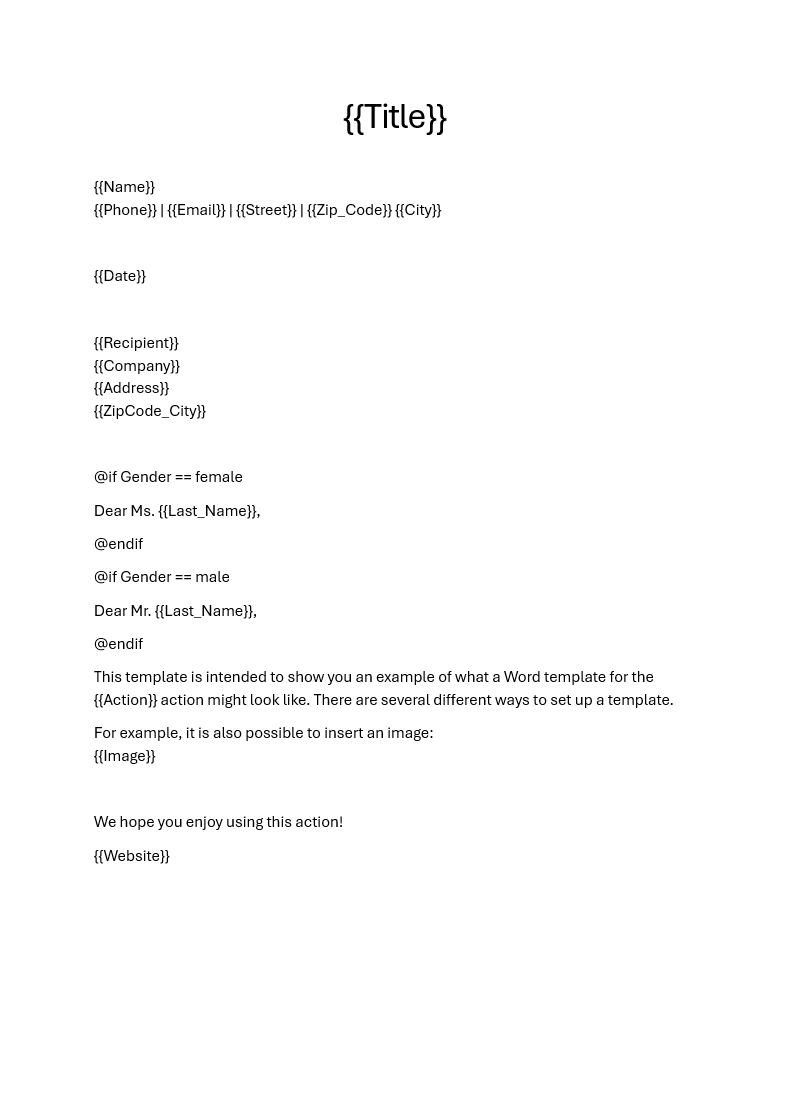
Note: Due to the internal structure of Word documents, there may be rare instances where a Word placeholder is not replaced with the specified value. This occurs in particular when the placeholder appears on the same line as other text.
Example:
This Word placeholder {{Example}} may not be resolved.
If a placeholder is not replaced, move it to its own line and save the document.
Example:
This Word placeholder
{{Example}}
will likely be resolved now.
You can then undo the change and move the placeholder back to its original position. Save the template again and repeat the action using the updated template. In most cases, this will resolve the issue, and the placeholder will then be correctly recognized and replaced, since the incorrect structure has been broken up and reset.
Three different data types are available for Word placeholders:
- Text: The Word placeholder is replaced with any text.
- Image: The Word placeholder is replaced by an image. Additionally, the image’s height and width can be defined.
- Hyperlink: The Word placeholder is replaced by a clickable link. A freely definable display text is used that points to the specified URL.
You must specify the following values in the configuration:
- File: Here, you must specify the template file using a placeholder; this file will serve as the basis for the generated Word document.
- File Name (optional): This configuration option allows you to optionally assign a new name to the generated Word file. The file extension .docx is automatically appended. If this field is left blank, the template’s filename is used.
- Add Word Placeholders:
Here, you define the values to be inserted into the template. An entry is created for each placeholder. Each entry consists of the following values:
- Name: The name of the Word placeholder from the template. You must use the exact same name as defined within the curly braces. Enter this name without the braces.
- Data Type: Determines how the placeholder is replaced. Possible values: Text, Image, and Hyperlink.
- Value:
The value to be inserted for the placeholder.
Depending on the data type, the following rules apply:
- Text: The text to be inserted.
- Image: The image file to be inserted into the document. This must be provided as a placeholder.
- Hyperlink: The text that will be displayed as a clickable link.
- Width (for images only): The width of the inserted image.
- Height (for images only): The height of the inserted image.
- Link (for hyperlinks only):
The link that should open when the hyperlink is clicked. It must begin with
https://.
Here is the template filled with examples:
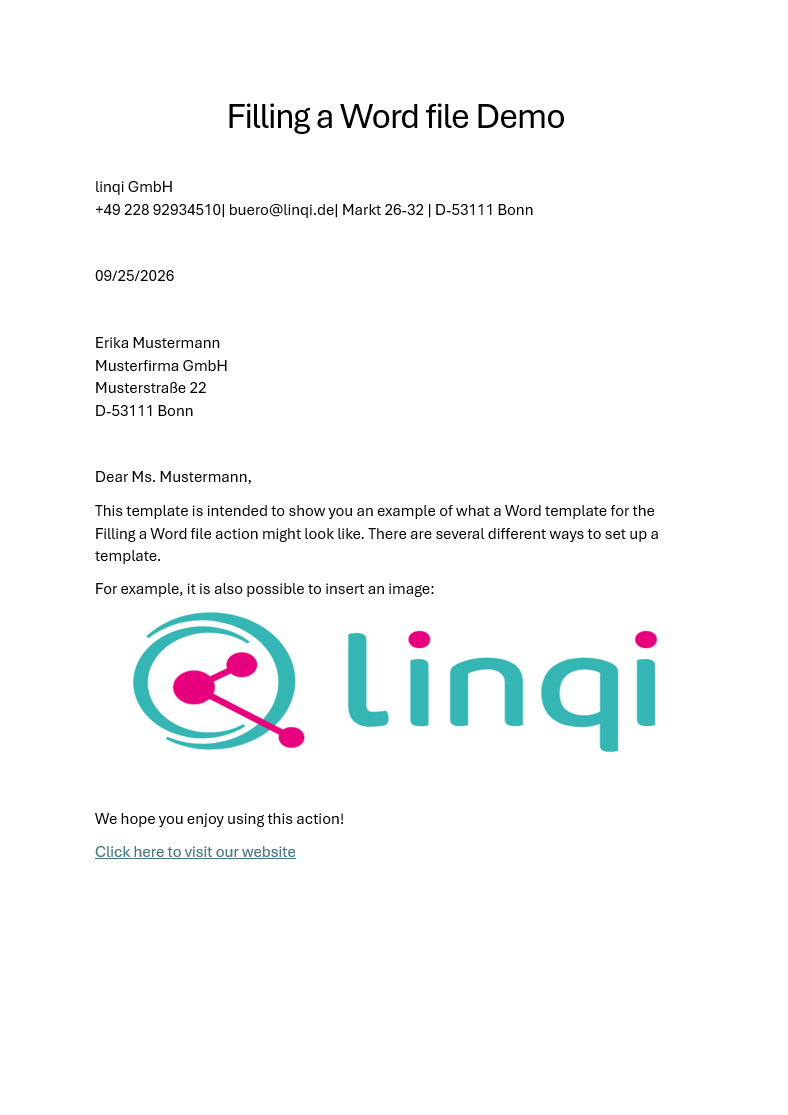
This action provides the following placeholders:
- Generated File: This placeholder references the generated Word file.